
Few things are more frustrating than seeing your phone battery drop to low levels before the day is over. Whether you’re commuting, working, or traveling, a dying phone can quickly disrupt your plans.
Modern smartphones are powerful devices capable of running multiple apps, streaming videos, handling navigation, and performing many tasks at once. However, all that functionality also consumes battery power.
The good news is that you don’t always need a bigger battery or a new phone to make your device last longer. In many cases, simple adjustments to your phone’s settings and usage habits can significantly extend battery life.
In this guide, we’ll explore practical tips to help you make your phone battery last all day, improve efficiency, and reduce unnecessary battery drain.
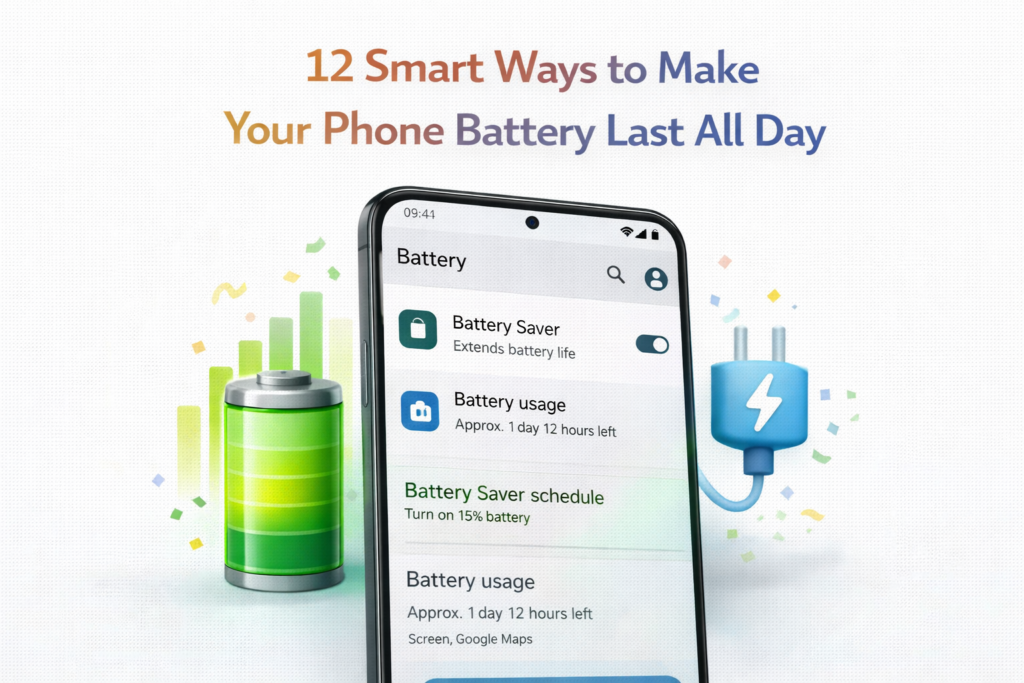
Why Smartphone Batteries Drain Quickly
Before learning how to improve battery life, it helps to understand why smartphone batteries drain quickly.
Modern smartphones run many background processes such as:
- App updates
- Location services
- Notifications
- Background syncing
Other factors like high screen brightness, heavy apps, and poor signal strength can also accelerate battery consumption.
Understanding these factors allows you to manage them more effectively.
1. Lower Screen Brightness
Your phone’s display is one of the biggest sources of battery consumption.
Why Brightness Matters
The brighter your screen, the more power it uses. Keeping brightness at maximum levels throughout the day can quickly drain your battery.
What You Can Do
Reduce screen brightness to a comfortable level or enable automatic brightness adjustment.
This feature allows the phone to adjust brightness based on surrounding lighting conditions.
Real-Life Example
When using your phone indoors, high brightness is usually unnecessary. Lowering brightness indoors can noticeably extend battery life.
2. Use Battery Saver Mode
Most smartphones include a built-in battery saver mode designed to reduce power consumption.
What Battery Saver Does
Battery saver mode may:
- Limit background activity
- Reduce visual effects
- Slow certain processes
- Restrict location updates
When to Use It
Battery saver is especially useful when your battery drops below 20–30%.
3. Turn Off Unnecessary Notifications
Notifications constantly wake your phone’s screen and processor.
While some alerts are important, many apps send notifications that are not essential.
How to Improve Battery Life
Disable notifications for apps that you rarely check.
Real-Life Example
If several social media apps send frequent alerts, turning off those notifications can reduce screen wake-ups and battery usage.
4. Limit Background App Activity
Some apps continue running even when you are not actively using them.
These background processes can consume both battery and system resources.
What You Can Do
Check your phone’s battery usage settings to see which apps consume the most power.
Restrict background activity for apps that do not need constant updates.
5. Turn Off Location Services When Not Needed
Location services are useful for navigation apps, weather updates, and location-based reminders.
However, continuous GPS usage can significantly drain your battery.
Smart Location Usage
Allow location access only when apps are in use rather than all the time.
Real-Life Example
Navigation apps require location services, but games or simple apps usually do not.
6. Reduce Screen Timeout Duration
Screen timeout determines how long your screen stays on when you stop using it.
If your screen remains active for long periods, it wastes battery power.
Recommended Setting
Setting your screen timeout to 30 seconds or 1 minute helps reduce unnecessary power usage.
7. Use Dark Mode
Many modern smartphones include OLED or AMOLED displays that consume less power when displaying darker colors.
Why Dark Mode Helps
Dark mode reduces the number of bright pixels on the screen, which lowers energy consumption.
Additional Benefit
Dark mode is also easier on the eyes in low-light environments.
8. Keep Apps and Software Updated
Software updates often include performance improvements and battery optimizations.
Developers regularly improve apps to reduce energy consumption.
Why Updates Matter
Updated apps may use fewer system resources, helping your phone run more efficiently.
9. Turn Off Wireless Features When Not Needed
Wireless features such as Bluetooth, Wi-Fi, and mobile data consume power when active.
When to Disable Them
Turn off these features if you are not actively using them.
Example
If you’re not connected to Bluetooth headphones or speakers, disabling Bluetooth can save energy.
10. Avoid Extreme Temperatures
Smartphone batteries are sensitive to extreme temperatures.
Both excessive heat and cold can affect battery performance.
Why Temperature Matters
High temperatures may cause faster battery degradation, while cold temperatures can temporarily reduce battery capacity.
Best Practice
Keep your phone within moderate temperature ranges whenever possible.
11. Remove Unused Apps
Unused apps may continue running background processes.
Removing apps that you no longer use can reduce unnecessary battery consumption.
Helpful Tip
Periodically review installed apps and uninstall those you rarely use.
12. Restart Your Phone Occasionally
Restarting your phone clears temporary processes and refreshes system performance.
This simple step can sometimes resolve apps that drain battery excessively.
When to Restart
Restarting once every few days can help maintain optimal performance.
Additional Tips for Long-Term Battery Health
Improving daily battery life is important, but protecting long-term battery health is equally valuable.
Avoid Overcharging
Although modern phones manage charging automatically, unplugging your device once it reaches full charge can help reduce heat.
Use Original Chargers
Using certified chargers ensures safe charging and protects battery components.
Monitor Battery Usage
Most smartphones include battery usage reports that show which apps consume the most power.
Checking these reports helps identify unusual battery drain.
Final Thoughts
Smartphones are essential tools that support communication, productivity, and entertainment throughout the day. However, heavy usage can sometimes lead to rapid battery drain.
Fortunately, small adjustments can make a big difference. By managing screen brightness, limiting background apps, controlling notifications, and optimizing system settings, you can significantly extend your phone’s battery life.
These simple steps help ensure your phone remains powered throughout the day without constantly searching for a charger.
With a few thoughtful habits, you can enjoy a more reliable smartphone experience while protecting the long-term health of your battery.
Frequently Asked Questions
Why does my phone battery drain so quickly?
Battery drain often occurs due to high screen brightness, background apps, location services, and frequent notifications.
Does dark mode really save battery?
Yes. On phones with OLED displays, dark mode can reduce power consumption by limiting bright pixels.
Is it safe to use battery saver mode all the time?
Yes, although some features may run at reduced performance when battery saver mode is enabled.
How often should I charge my phone?
Charging your phone when the battery drops below around 20–30% is generally recommended.
Can apps cause battery drain?
Yes. Some apps may run background processes or consume significant power if not optimized.
SHARING IS CARING 💖