
TikTok has become one of the most widely used social media platforms in the world. From viral challenges and creative videos to business marketing and influencer content, millions of users rely on the app daily for entertainment and engagement.
But sometimes the experience gets interrupted by a frustrating problem: TikTok keeps crashing.
You might open the app only for it to close suddenly. In other cases, the app freezes while scrolling, crashes while uploading a video, or stops responding completely.
If you’re dealing with frequent TikTok crashes, you’re not alone. App crashes can happen for many reasons, but the good news is that most of these problems are easy to fix.
In this guide, we’ll explore why TikTok crashes frequently and the steps you can take to fix the issue quickly.
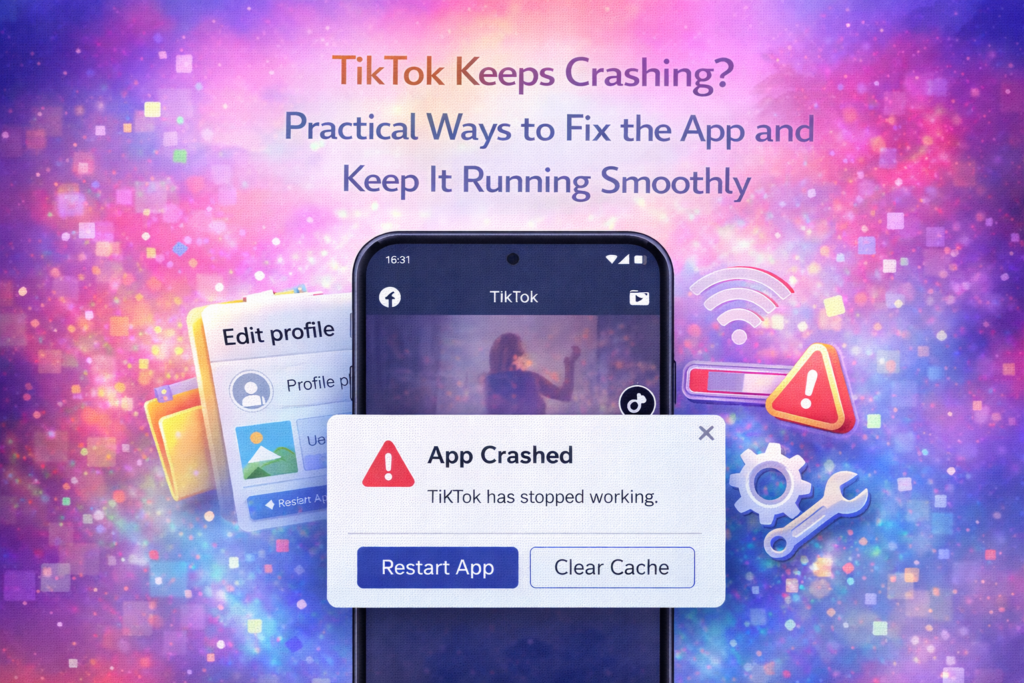
Why TikTok Keeps Crashing
Understanding the cause of the problem can help you solve it faster.
TikTok crashes may occur because of several factors, including:
- Outdated app versions
- Full device storage
- Software bugs
- Corrupted cache files
- Weak internet connections
Sometimes the issue may also come from temporary server problems or device compatibility issues.
Fortunately, most crashes can be fixed with simple troubleshooting steps.
Restart the TikTok App
One of the easiest solutions is restarting the app.
Apps sometimes crash due to temporary glitches or overloaded processes.
How to Restart TikTok
- Close the TikTok app completely.
- Wait a few seconds.
- Open the app again.
This simple action refreshes the app and often resolves minor issues.
Restart Your Smartphone
If TikTok continues to crash, restarting your phone may help.
Restarting clears background processes that might interfere with app performance.
Real-Life Example
If multiple apps are running in the background, they can consume system resources and cause TikTok to crash. Restarting your phone refreshes the system and frees up memory.
Update the TikTok App
Running an outdated version of TikTok can cause bugs and crashes.
Developers release regular updates to fix issues and improve performance.
How to Update
- Open the Google Play Store or Apple App Store
- Search for TikTok
- Tap Update if a new version is available
Using the latest version helps ensure the app runs smoothly.
Clear TikTok Cache
TikTok stores temporary data to load content faster. Over time, these files can become corrupted.
Clearing the cache removes unnecessary data and refreshes the app.
Steps to Clear Cache
- Open TikTok settings.
- Navigate to storage or cache settings.
- Tap Clear cache.
After clearing the cache, restart the app and check if the problem is resolved.
Check Your Internet Connection
TikTok relies heavily on internet connectivity to load videos and features.
If your connection is unstable, the app may crash or freeze.
What You Can Do
- Switch to a stable Wi-Fi network
- Restart your router
- Turn airplane mode on and off
- Try mobile data instead of Wi-Fi
A strong connection improves app performance.
Free Up Device Storage
Low storage space can affect how apps function.
When your device storage is nearly full, apps may crash or fail to load properly.
How to Free Storage
- Delete unused apps
- Remove duplicate photos and videos
- Clear temporary files
Maintaining sufficient storage helps TikTok run efficiently.
Reinstall the TikTok App
If crashes continue after trying other solutions, reinstalling TikTok may help.
Why Reinstalling Works
Reinstalling removes corrupted files and installs a fresh version of the app.
Steps
- Uninstall TikTok from your phone.
- Restart your device.
- Download the app again from the official store.
After reinstalling, log in to your account and test the app.
Check Device Compatibility
Older smartphones may struggle to run modern apps efficiently.
If your device has outdated hardware or software, it may not fully support newer versions of TikTok.
Possible Solutions
- Update your phone’s operating system
- Close other apps while using TikTok
- Reduce background processes
Keeping your device updated improves app stability.
Disable Battery Optimization for TikTok
Some smartphones restrict background apps to save battery.
This can sometimes interfere with TikTok’s performance.
How to Fix
Allow TikTok to run without strict battery optimization restrictions.
This ensures the app receives enough system resources.
Check TikTok Server Status
Occasionally, the problem may not be on your device at all.
TikTok servers sometimes experience temporary outages or maintenance.
What to Do
Wait a few minutes and try opening the app again.
Server issues are usually resolved quickly.
Tips to Prevent TikTok Crashes
Once you fix the issue, a few simple habits can help prevent future crashes.
Keep Your App Updated
Regular updates ensure bug fixes and performance improvements.
Maintain Enough Storage Space
Apps run better when your device has sufficient free storage.
Restart Your Phone Occasionally
Restarting helps clear temporary system issues.
Avoid Running Too Many Apps at Once
Too many background apps can slow down your device.
Real-Life Example: Fixing TikTok Crashes
Imagine a user whose TikTok app crashes every time they try to upload a video.
After checking their phone storage, they discover the device is almost full.
Once they delete unnecessary files and free up storage space, the app works normally again.
This example shows how device performance can affect app stability.
Why Smooth App Performance Matters
TikTok is designed to deliver fast, engaging content.
When the app crashes frequently, it disrupts the user experience and can affect creators who rely on the platform.
Keeping the app stable ensures you can:
- Watch videos without interruption
- Upload content easily
- Engage with followers and comments
Maintaining app performance helps you enjoy the full TikTok experience.
Final Thoughts
TikTok crashing frequently can be frustrating, but the problem is usually easy to fix.
Simple solutions such as updating the app, clearing cache, freeing storage space, and checking your internet connection can resolve most issues.
By following the troubleshooting steps in this guide, you can restore TikTok’s performance and continue enjoying the platform without interruptions.
Regular maintenance of your app and device can also help prevent future crashes.
Frequently Asked Questions
Why does TikTok keep crashing on my phone?
Common causes include outdated apps, low storage space, unstable internet connections, or software bugs.
Does clearing TikTok cache delete my videos?
No. Clearing cache only removes temporary files and does not affect your videos or account.
Can phone storage affect TikTok performance?
Yes. Low storage space can slow down apps and cause crashes.
Should I reinstall TikTok if the app keeps crashing?
Yes. Reinstalling the app can fix corrupted files or installation problems.
Does internet speed affect TikTok crashes?
Yes. Poor connectivity can cause the app to freeze or crash while loading videos.
SHARING IS CARING 💖