
Seeing horizontal lines on your Android phone screen can be scary. One moment your display looks normal, and the next you notice thin white, black, green, or colorful lines running across the screen.
The good news is that this problem is not always permanent.
Sometimes it’s just a small software glitch, while in other cases it may point to screen pressure damage, overheating, loose display connectors, or impact damage. Trusted repair guides confirm that a restart, Safe Mode test, software update, or factory reset can solve software-related line issues, while hardware faults usually need a screen replacement.
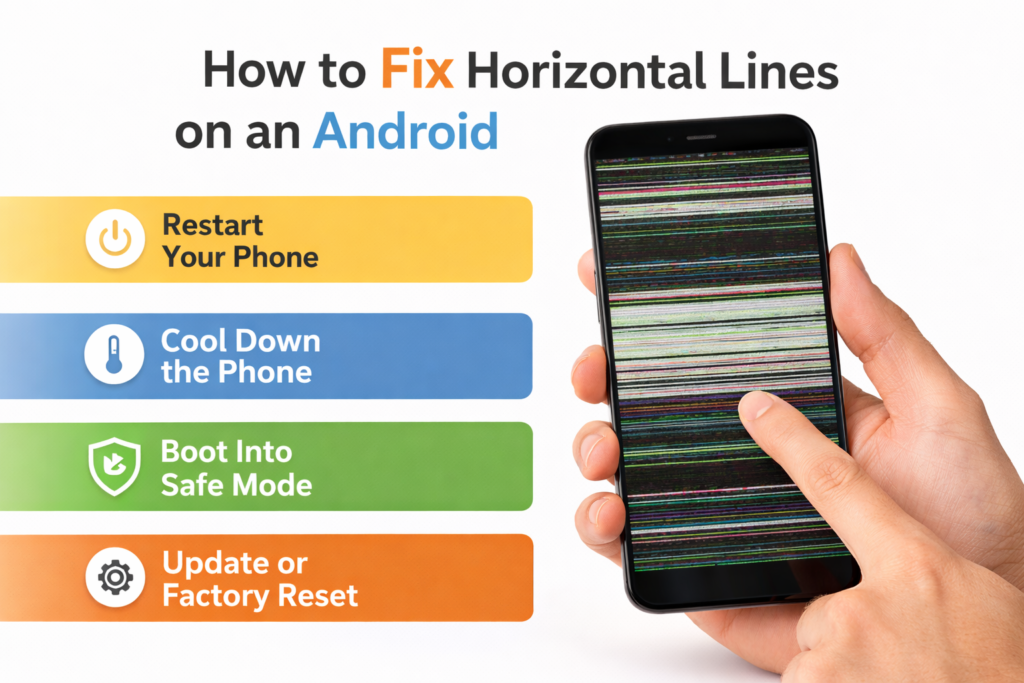
Why Horizontal Lines Appear on Android Phones
Before fixing it, it helps to understand the real cause.
Common reasons include:
- accidental phone drops
- pressure damage in pocket or bag
- water or moisture exposure
- overheating
- software bugs
- faulty display driver
- loose display connector
- OLED panel damage
- recently installed buggy apps
If the phone was dropped recently, there’s a higher chance it’s hardware related.
Step 1: Restart Your Android Phone
Start with the easiest fix.
A simple restart can refresh the display driver and remove temporary glitches.
Steps
- Press and hold the Power button
- Tap Restart
- Wait for the phone to reboot
- Check whether the horizontal lines disappear
Many temporary display issues are fixed this way.
Step 2: Let the Phone Cool Down
Overheating can create strange lines or screen artifacts.
This is common if:
- you play games for hours
- use fast charging heavily
- keep brightness at maximum
- use the phone under sunlight
What to do
- remove the case
- stop charging
- turn the phone off
- let it cool for 15–20 minutes
Then turn it back on.
Heat-related line issues often improve after cooling.
Step 3: Boot Into Safe Mode
Safe Mode helps check whether a third-party app is causing the problem.
How to enter Safe Mode
- Press and hold Power button
- Touch and hold Power Off
- Tap Reboot to Safe Mode
- Use the phone for a few minutes
If the lines disappear in Safe Mode, the issue is likely caused by a recently installed app.
Fix
Uninstall:
- screen filter apps
- gaming boosters
- theme launchers
- display mods
- battery saver apps
These often interfere with display rendering.
Step 4: Check for Software Updates
Display bugs are often fixed in Android updates.
Go to:
Settings → System → Software Update
Install any pending updates and restart the device.
This is especially effective on:
- Samsung Galaxy
- OnePlus
- Xiaomi
- Motorola
- Oppo
- Realme
Step 5: Remove Recently Installed Apps
Think about what changed before the issue started.
Did you recently install:
- a new launcher?
- a game?
- a display calibration app?
- unknown APK files?
- screen recorder?
If yes, uninstall those first.
A faulty app can conflict with GPU rendering and create horizontal lines.
Step 6: Test the Screen Physically
Lightly rotate the phone and notice whether the lines change.
If lines change when:
- pressing near the edge
- twisting slightly
- opening a foldable hinge
- touching a cracked area
then it usually means display cable or OLED damage.
This is a hardware issue.
Step 7: Factory Reset (Last Software Fix)
If Safe Mode and updates don’t help, try a factory reset.
⚠️ Back up all data first
Steps
- Open Settings
- Go to System
- Tap Reset Options
- Select Erase all data
- Confirm reset
If the lines remain even after reset, the issue is almost certainly hardware.
When It’s a Hardware Problem
Sometimes no software fix can help.
Signs of hardware damage
- lines appeared after dropping phone
- screen glass is cracked
- water damage happened
- lines stay on boot logo
- lines worsen over time
- touchscreen stops responding
- pressure changes the lines
In these cases, the display assembly usually needs replacement.
My Honest Human Advice
If the phone is still under warranty, do not open it yourself.
Take it to:
- brand service center
- certified local repair shop
- insurance provider
- warranty claim desk
Opening the phone at home may void warranty coverage.
For AMOLED phones, screen replacement can be costly, so always check official service pricing first.
Final Thoughts
Horizontal lines on an Android phone are frustrating, but the fix often depends on whether it’s software or hardware.
The smartest order is:
Restart → Cool down → Safe Mode → Update → Reset → Repair
If the lines disappear in Safe Mode or after restart, it’s usually fixable at home.
But if the lines stay permanently, the screen itself is likely damaged and needs repair.
SHARING IS CARING 💖