
Buying a new smartphone is always exciting. Whether it’s the latest Android device or a brand-new iPhone, the feeling of turning on a fresh phone for the first time is something many people enjoy.
However, most users simply go through the initial setup process and start installing apps without checking important settings that can improve security, performance, and overall usability.
Your smartphone comes with many default settings designed for general use, but they may not always be optimized for your personal needs. By adjusting a few key options right away, you can create a safer and smoother smartphone experience.
In this guide, we’ll explore the first five settings you should change on a new smartphone, why they matter, and how they can help you get the most out of your device.
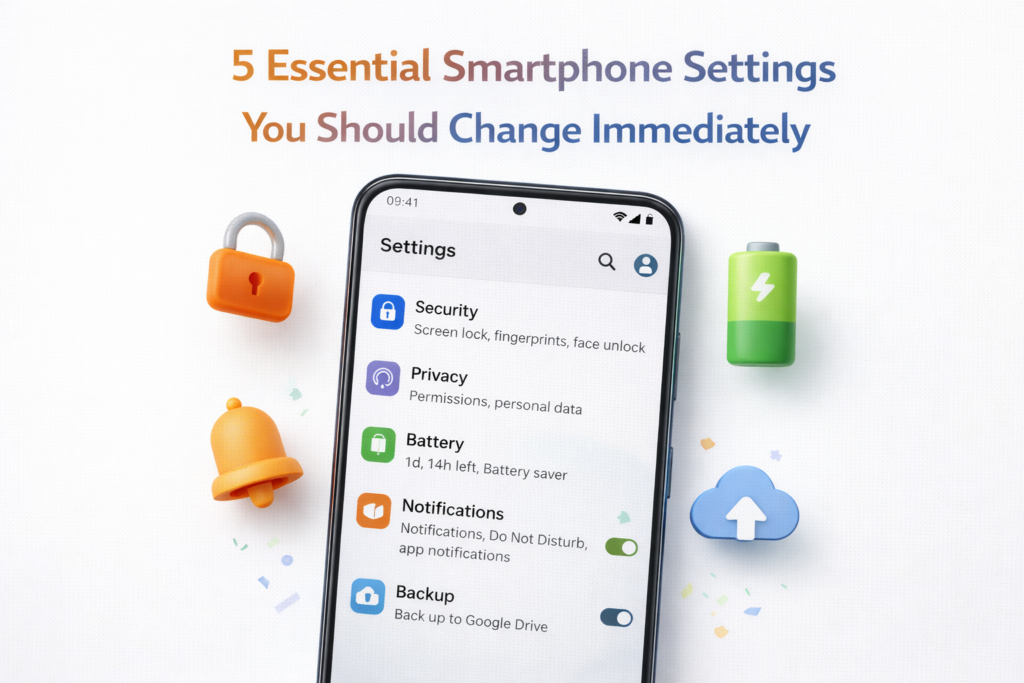
Why Changing Default Smartphone Settings Matters
Default settings are designed to work for the average user, but every person uses their smartphone differently.
Some people prioritize privacy, while others want better battery life or fewer notifications.
Adjusting your phone’s settings allows you to:
- Improve device security
- Protect your personal data
- Extend battery life
- Reduce distractions
- Optimize performance
Making a few simple changes at the beginning can save you time and frustration later.
1. Set Up Strong Security and Lock Screen Protection
One of the first things you should do after setting up a new smartphone is enable a secure lock screen.
Many phones offer several security options such as:
- PIN codes
- Passwords
- Fingerprint unlocking
- Face recognition
Why This Is Important
Your smartphone contains a large amount of personal information, including:
- Messages
- Photos
- Emails
- Financial apps
Without proper protection, anyone who picks up your phone could potentially access this information.
Real-Life Example
Imagine losing your phone in a public place. A strong lock screen ensures that even if someone finds your device, your private data remains protected.
Helpful Tip
Using biometric authentication like fingerprint or face unlock combined with a PIN provides both convenience and security.
2. Adjust Notification Settings to Reduce Distractions
Modern smartphones constantly receive notifications from apps, social media platforms, and services.
While notifications can be helpful, too many alerts can quickly become overwhelming.
Why Notification Control Matters
Too many notifications can:
- Interrupt your work
- Drain battery life
- Create unnecessary distractions
How to Improve Notifications
Instead of allowing every app to send alerts, customize your notification settings.
Keep notifications enabled for important apps such as:
- Messaging apps
- Calendar reminders
Disable notifications for apps that are not essential.
Real-Life Example
If multiple social media apps constantly send alerts, turning off those notifications can help you stay focused during work or study time.
3. Review App Permissions for Better Privacy
When installing apps, many users quickly tap “Allow” without reviewing what permissions the app is requesting.
However, controlling app permissions is crucial for protecting your privacy.
Common App Permissions
Apps may request access to:
- Camera
- Microphone
- Location
- Contacts
- Storage
Why This Matters
Some apps request permissions that are not necessary for their functionality.
For example, a simple game should not require access to your contacts.
Helpful Tip
Regularly check your phone’s privacy settings and disable permissions that seem unnecessary.
This helps prevent apps from collecting more data than needed.
4. Enable Automatic Backup and Cloud Sync
One of the worst experiences for smartphone users is losing important data.
Photos, contacts, and documents can disappear if your phone is damaged, lost, or reset.
Enabling automatic backup ensures that your data remains safe.
What Automatic Backup Protects
Backup systems typically save:
- Photos and videos
- Contacts
- App data
- Device settings
Real-Life Example
If you upgrade to a new phone in the future, backups allow you to restore your data quickly without losing important files.
Helpful Tip
Use both cloud backup and occasional external backups for maximum protection.
5. Optimize Battery and Power Management Settings
Battery life is one of the most important aspects of smartphone usability.
Many devices include built-in tools that help extend battery performance.
Features That Help Save Battery
Common power-saving features include:
- Adaptive battery optimization
- Background app restrictions
- Dark mode
- Power saving modes
Why This Is Helpful
Adjusting these settings can help your phone last longer throughout the day.
Real-Life Example
If certain apps constantly run in the background, limiting their activity can significantly improve battery life.
Bonus Tip: Customize Your Home Screen
Although not essential, customizing your home screen can make your phone easier to use.
You can organize apps based on how frequently you use them.
Simple Organization Ideas
- Place frequently used apps on the main screen
- Group similar apps into folders
- Remove unnecessary widgets
This makes navigation faster and keeps your phone organized.
Tips for Maintaining Smartphone Performance
Once you adjust the initial settings, a few simple habits can help keep your device running smoothly.
Keep Software Updated
System updates often include security improvements and performance fixes.
Remove Unused Apps
Deleting apps you no longer use helps free up storage and reduce background activity.
Restart Your Phone Occasionally
Restarting your device helps clear temporary processes and improve performance.
Why These Settings Improve Your Smartphone Experience
Taking a few minutes to adjust these settings can dramatically improve how your phone works.
Instead of dealing with unnecessary notifications, weak security, or poor battery life, you can customize your device to match your preferences.
These simple adjustments make your smartphone:
- More secure
- More efficient
- Easier to use
Final Thoughts
Setting up a new smartphone is an exciting moment, but many users overlook the importance of adjusting key settings right away.
By focusing on security, notifications, privacy permissions, backups, and battery optimization, you can create a better smartphone experience from the very beginning.
These small changes may only take a few minutes, but they can make a big difference in how your device performs over time.
Whether you’re using your phone for work, communication, or entertainment, configuring the right settings helps ensure your device works exactly the way you want.
Frequently Asked Questions
Why should I change default smartphone settings?
Default settings are designed for general users. Adjusting them allows you to improve security, privacy, and performance based on your needs.
Which smartphone setting is most important to change first?
Setting up a secure lock screen with a PIN, fingerprint, or face recognition is one of the most important steps.
Does changing settings improve battery life?
Yes. Adjusting battery optimization settings and limiting background apps can significantly extend battery performance.
Are app permissions important?
Yes. Managing app permissions helps protect your privacy and prevents apps from accessing unnecessary data.
Should I enable automatic backup on my phone?
Yes. Automatic backups ensure your photos, contacts, and files remain safe if something happens to your device.
SHARING IS CARING 💖