
Android smartphones are packed with features designed to make everyday tasks easier and more efficient. Yet, many users only scratch the surface of what their devices can actually do.
Most people use their phones mainly for calling, messaging, social media, and browsing the internet. However, Android includes many hidden tools and features that can significantly improve productivity, security, and convenience.
The surprising part is that these features are already built into the system — you just need to know where to find them.
In this guide, we’ll explore 10 hidden Android features most people never use, how they work, and why they can make your smartphone experience much better.
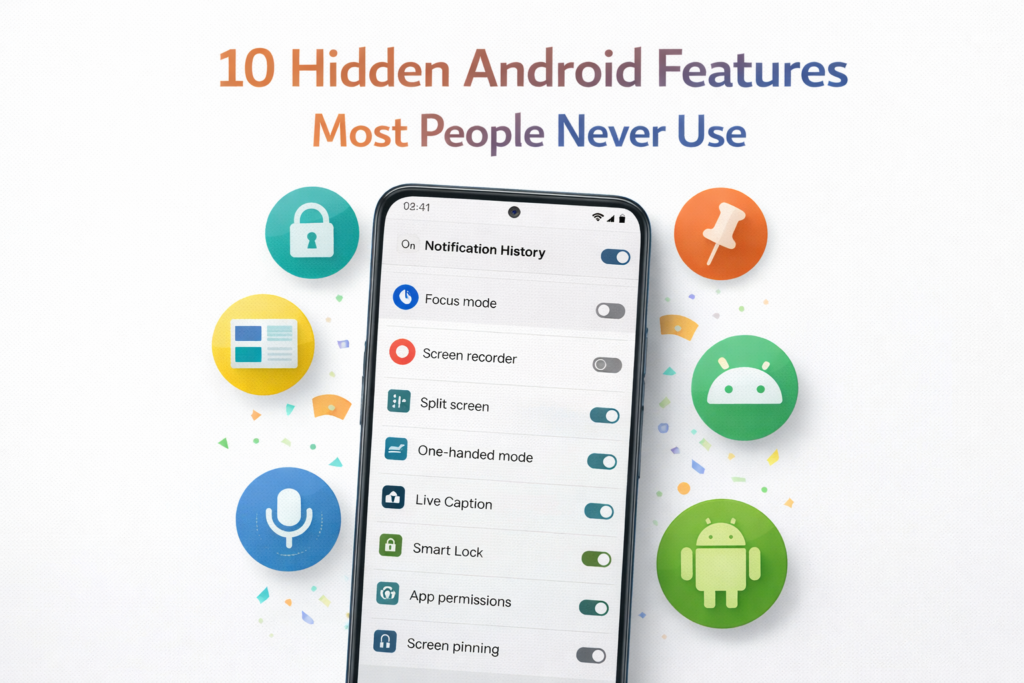
Why Android Has So Many Hidden Features
Android is designed to be highly customizable and flexible. Because of this, developers include many tools that may not always be visible on the main interface.
Some features are hidden in system settings, while others appear only when certain conditions are met.
These tools are often designed to help users:
- Save time
- Improve privacy
- Increase productivity
- Customize their device experience
Learning about these features can help you unlock the full potential of your smartphone.
1. Screen Pinning for Better Privacy
Screen pinning is a useful security feature that allows you to lock your phone to a single app.
Why It’s Useful
If you need to hand your phone to someone temporarily — for example, to show a photo — screen pinning prevents them from accessing other apps.
Real-Life Example
Imagine showing a photo to a friend. With screen pinning enabled, they can only view that app and cannot open messages or other private apps.
How to Enable Screen Pinning
- Open Settings
- Go to Security
- Enable Screen Pinning
2. One-Handed Mode
Modern smartphones often have large displays, which can make them difficult to use with one hand.
Android includes a one-handed mode that temporarily shrinks the screen to make navigation easier.
When It’s Helpful
This feature is particularly useful when:
- You’re walking
- Carrying something in the other hand
- Using your phone on public transportation
3. Split-Screen Multitasking
Android allows you to run two apps on the screen at the same time.
How It Helps
Split-screen multitasking allows users to:
- Watch videos while messaging
- Read an article while taking notes
- Browse the web while checking emails
Real-Life Example
A student can open a document editor on one side and a research article on the other.
4. Smart Lock
Smart Lock automatically keeps your phone unlocked in trusted situations.
Trusted Conditions Can Include
- Trusted locations
- Trusted Bluetooth devices
- When the phone detects it’s being carried
Why It’s Useful
This reduces the need to constantly unlock your phone when you’re at home or using a trusted device.
5. Live Caption
Live Caption is one of Android’s most impressive accessibility features.
It automatically generates captions for audio playing on your device.
Where It Works
Live Caption can add subtitles to:
- Videos
- Podcasts
- Voice messages
- Recorded audio
Why It’s Helpful
It allows users to watch content without sound, which can be useful in quiet environments.
6. Notification History
Have you ever accidentally dismissed an important notification?
Android includes a feature that records recently dismissed notifications.
How It Helps
Notification history allows you to:
- Recover missed alerts
- Review recent messages
- Check updates you may have dismissed by mistake
7. Quick Tap Actions
Some Android devices allow users to perform actions by tapping the back of the phone.
Possible Actions Include
- Taking screenshots
- Opening apps
- Turning on the flashlight
- Launching the camera
Real-Life Example
Double tapping the back of your phone can instantly capture a screenshot.
8. Focus Mode
Focus Mode helps reduce distractions by temporarily pausing selected apps.
When It’s Useful
Focus Mode is great for:
- Studying
- Working
- Avoiding social media distractions
Example
You can pause entertainment apps while keeping communication apps active.
9. App Permission Control
Android provides detailed control over what apps can access on your phone.
Permissions You Can Manage
- Location access
- Camera access
- Microphone usage
- Storage permissions
Why It Matters
Managing permissions helps protect your privacy and prevents apps from accessing unnecessary data.
10. Built-In Screen Recorder
Many Android phones include a built-in screen recording feature.
What It Can Do
Screen recording allows you to:
- Record tutorials
- Capture gameplay
- Save video calls
- Demonstrate app usage
Real-Life Example
Content creators often use screen recording to create smartphone tutorials.
Tips to Get the Most From Android Features
Now that you know about these hidden tools, here are a few tips to use them effectively.
Explore System Settings
Many useful features are located within your phone’s settings menu.
Keep Your Phone Updated
New Android updates often introduce additional features and improvements.
Customize Your Device
Android allows extensive customization, so adjust settings to match your personal preferences.
Why Learning Hidden Features Matters
Understanding the hidden capabilities of your phone can dramatically improve how you use it.
Instead of installing extra apps for simple tasks, many Android devices already include built-in solutions.
Learning these features can help you:
- Save time
- Increase productivity
- Improve security
- Customize your experience
Final Thoughts
Android smartphones are far more powerful than most users realize. Beneath the familiar interface lies a wide range of features designed to make daily tasks easier and more efficient.
From multitasking tools to privacy features and accessibility improvements, Android offers countless ways to improve your smartphone experience.
By exploring these hidden settings and capabilities, you can unlock the full potential of your device and discover tools that make everyday smartphone use more convenient.
Sometimes the most useful features are the ones that remain hidden — until you know where to look.
Frequently Asked Questions
Are hidden Android features available on all devices?
Some features may vary depending on the Android version and phone manufacturer.
How can I find hidden features on my phone?
Exploring your phone’s settings menu and system tools can help reveal many useful options.
Do hidden Android features slow down the phone?
No. Most built-in features are optimized to work efficiently within the system.
Is Android customizable compared to other operating systems?
Yes. Android is known for its flexibility and customization options.
Should I update my Android system regularly?
Yes. Updates often include security improvements, bug fixes, and new features.
SHARING IS CARING 💖