
For a long time, my Android tablet mostly collected dust on a shelf. I bought it thinking it would help me read, watch videos, and maybe do some light work. But in reality, I kept reaching for my laptop instead.
The tablet felt limited. Multitasking wasn’t great, productivity apps felt awkward, and typing long documents on the screen was uncomfortable. It worked well for entertainment, but not for serious work.
Then one weekend I decided to experiment. Instead of replacing the tablet, I started exploring ways to optimize Android and make it more productivity-focused.
After making just a few adjustments, the transformation surprised me. My tablet suddenly became a useful work device—capable of writing documents, browsing efficiently, managing files, and even multitasking.
In fact, after these tweaks, it started to feel remarkably similar to using a lightweight Chromebook.
If you own an Android tablet that feels underused, these five changes might help you unlock its full potential.
Why Android Tablets Are Often Underestimated
Android tablets have improved significantly in recent years, but many people still think of them mainly as media consumption devices.
They’re commonly used for:
- Watching videos
- Browsing the web
- Reading ebooks
- Playing games
While these uses are great, Android tablets can actually be quite capable when configured properly.
With the right setup, they can handle many everyday tasks such as:
- Writing documents
- Email communication
- Online research
- Cloud storage management
- Remote work tools
The key is adjusting the tablet’s settings and workflow so it behaves more like a productivity device.
1. Switching to a Desktop-Style Launcher
One of the biggest improvements came from changing the tablet’s launcher.
A launcher controls how the home screen and app interface behave. Many default Android tablet launchers are designed primarily for touch interaction and simplicity.
However, some third-party launchers offer features that resemble a desktop environment.
Benefits of a Desktop-Style Launcher
- Better multitasking layout
- More customizable home screen
- Improved organization of apps
- Faster access to frequently used tools
After installing a launcher designed for productivity, my tablet started to feel more like a mini computer rather than a large phone.
Real-Life Example
Instead of opening apps through multiple menus, I placed important tools—like my browser, document editor, and file manager—directly on the home screen.
This saved time and made navigation much easier.
2. Connecting a Keyboard and Mouse
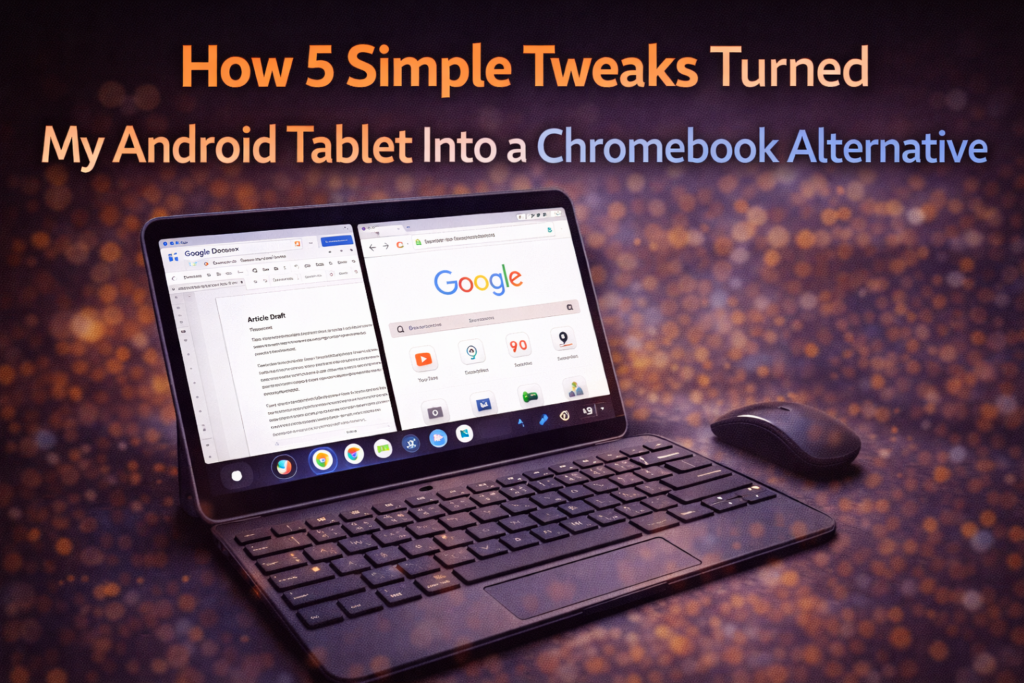
The second change that dramatically improved my tablet experience was connecting a Bluetooth keyboard and mouse.
Typing long documents on a touchscreen can feel slow and uncomfortable. A physical keyboard solves this problem instantly.
Advantages of Using a Keyboard
- Faster typing
- Better accuracy
- More comfortable writing sessions
- Ability to use keyboard shortcuts
Adding a mouse also makes navigation easier when working with multiple windows or documents.
Real-Life Example
After pairing a keyboard, writing emails and editing documents became much more comfortable. The tablet finally felt capable of handling real productivity tasks.
3. Using Split-Screen Multitasking
Multitasking is one of the most important features for productivity devices.
Many Android tablets support split-screen mode, which allows two apps to run side by side.
Why Split-Screen Helps
With split-screen enabled, you can:
- Research in a browser while writing notes
- Watch a tutorial while practicing a task
- Chat with colleagues while working
Real-Life Example
I often keep a document editor open on one side of the screen and a browser on the other.
This setup feels very similar to working on a laptop.
4. Installing Productivity Apps Instead of Mobile Apps
Another important change was replacing some basic mobile apps with more powerful productivity tools.
Many apps designed for phones focus on simplicity, while tablet versions often include additional features.
Useful Types of Productivity Apps
- Document editing tools
- Cloud storage apps
- Note-taking applications
- Task management tools
Choosing apps designed for larger screens improves the overall experience significantly.
Real-Life Example
Once I installed better note-taking and file management apps, organizing documents became much easier.
5. Organizing Files With a Proper File Manager
One reason laptops feel more productive than tablets is file organization.
Without a good file management system, it can be difficult to locate documents quickly.
Installing a powerful file manager app solved this problem.
Benefits of File Managers
- Easy file browsing
- Folder organization
- Cloud storage integration
- Faster document access
Real-Life Example
I created folders for work files, personal documents, and downloads.
This simple organization made my tablet feel much closer to using a laptop.
The Unexpected Benefits of Using a Tablet for Work
After making these adjustments, I noticed several advantages that tablets have over laptops.
Longer Battery Life
Tablets often last much longer on a single charge.
Lightweight and Portable
Carrying a tablet is easier than carrying a laptop.
Instant Startup
Unlike many laptops, tablets wake instantly when you unlock them.
These benefits make tablets especially useful for light productivity and travel.
Situations Where an Android Tablet Works Best
Although tablets cannot replace powerful laptops for every task, they work well in many situations.
Students
Tablets are great for reading, taking notes, and researching topics.
Remote Workers
They’re useful for email, document editing, and online meetings.
Travelers
Tablets provide productivity tools without the weight of a laptop.
When a Laptop Is Still Better
Despite these improvements, laptops still have advantages in certain areas.
They’re better for:
- Heavy multitasking
- Video editing
- Programming
- Complex software
However, for everyday productivity tasks, a well-configured tablet can be surprisingly capable.
Final Thoughts
For a long time, I underestimated what my Android tablet could do. I thought it was only useful for watching videos or browsing social media.
But after making a few simple tweaks—changing the launcher, connecting a keyboard, using split-screen multitasking, installing better apps, and organizing files—the device became far more powerful than I expected.
It may not replace a full laptop for advanced work, but it can easily handle many daily productivity tasks.
If you already own an Android tablet, you might not need to buy a new device at all. With the right setup, your tablet could become a lightweight productivity machine that feels surprisingly close to using a Chromebook.
Sometimes unlocking the potential of a device is just a matter of changing how you use it.
Frequently Asked Questions
Can an Android tablet replace a Chromebook?
For light productivity tasks such as browsing, writing documents, and managing files, an Android tablet can perform many of the same functions.
Do Android tablets support keyboards?
Yes. Most Android tablets support Bluetooth keyboards and mice.
What is split-screen mode on Android?
Split-screen allows two apps to run side by side, making multitasking easier.
Are tablets good for writing documents?
With a keyboard connected, tablets can be comfortable for writing emails, notes, and documents.
What apps improve productivity on Android tablets?
Document editors, note-taking apps, cloud storage tools, and file managers can significantly improve productivity.
SHARING IS CARING 💖