
When setting up a new smartphone, most users focus on transferring contacts, installing apps, and customizing the home screen. However, one important step often gets overlooked: reviewing and adjusting default system settings.
Many smartphones, including Samsung and Motorola devices, come with several features enabled by default that collect data, run background services, or send usage information to improve software performance. While some of these features can be helpful, others may affect privacy, battery life, or system performance.
One of the first things many experienced users do when setting up a new Android device is disable certain default features that they do not need. Making a few adjustments early can help improve device efficiency and reduce unnecessary data collection.
In this guide, we explore the first feature many users disable on new Samsung and Motorola phones, why it matters, and how adjusting your device settings can improve privacy and performance.
Why Default Phone Settings Matter
Smartphones today are powerful devices that rely on many background processes to function smoothly. These processes help manage system updates, collect diagnostics, and improve software features.
However, some default settings may:
- Send usage data to developers
- Run background services continuously
- Track user activity to personalize services
While these features are often designed to improve the user experience, not everyone wants them enabled.
Adjusting settings allows users to maintain greater control over how their devices operate.
The Feature Many Users Turn Off First
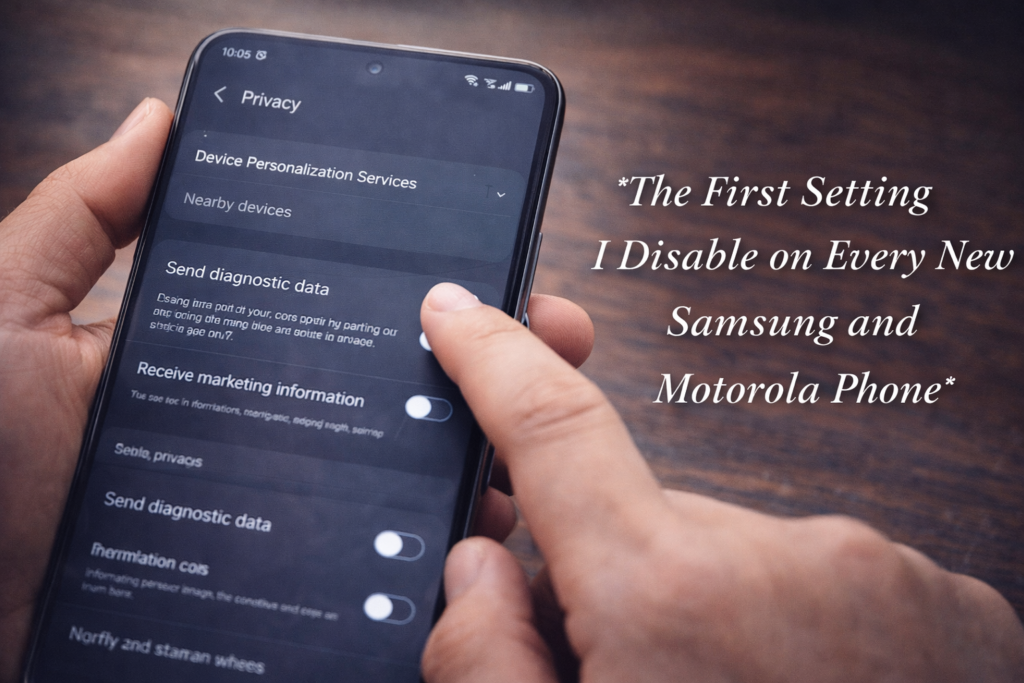
One of the most common features users disable on new Android phones is usage and diagnostics data sharing.
This setting allows devices to send anonymous usage information to manufacturers and software developers.
The purpose of this data collection is to help companies improve their products by understanding how people use their devices.
However, some users prefer to limit data sharing to protect privacy.
What Usage Data Sharing Does
When enabled, usage data sharing may collect information such as:
- App usage statistics
- Device performance data
- Error reports
- Feature interaction patterns
Manufacturers analyze this information to identify bugs, improve features, and optimize performance.
While the data is typically anonymized, some users prefer to disable the feature to minimize background data activity.
How Disabling This Feature Can Help
Turning off usage data sharing can provide several benefits.
Improved Privacy
Disabling diagnostic reporting reduces the amount of data sent from your device to external servers.
For users who prioritize privacy, this is an important step.
Reduced Background Activity
Some diagnostic services run periodically in the background.
Turning them off may slightly reduce system activity and help improve battery life.
Greater User Control
Customizing settings ensures that your device operates according to your preferences rather than default configurations.
How to Disable Usage Data Sharing
The exact steps may vary slightly depending on the device model and Android version, but the process is generally straightforward.
Steps for Samsung Phones
- Open the Settings app
- Scroll to Privacy or Security and Privacy
- Select Diagnostics Data or Usage and Diagnostics
- Toggle the option off
Steps for Motorola Phones
- Open Settings
- Tap Privacy
- Locate Usage and Diagnostics
- Turn off the data-sharing option
Once disabled, your device will stop sending diagnostic information automatically.
Other Settings Worth Reviewing
While usage data sharing is often the first feature people disable, several other settings are also worth checking when setting up a new phone.
Location Services
Location tracking is essential for apps like navigation and ride-sharing services.
However, some apps request location access even when it is not necessary.
Reviewing location permissions can help protect privacy.
App Permissions
Apps often request access to features such as:
- Camera
- Microphone
- Contacts
- Storage
Checking these permissions ensures that apps only access information they truly need.
Personalized Advertising
Some devices include settings that allow advertisers to personalize ads based on user activity.
Disabling ad personalization can reduce tracking across apps.
Why Manufacturers Enable These Features
It’s important to understand that manufacturers typically enable these features to improve products rather than collect personal data.
Usage statistics help developers identify issues such as:
- App crashes
- Software bugs
- Performance problems
This information allows companies to release updates that improve reliability.
However, users should always have the option to decide how much information they want to share.
The Importance of Digital Privacy
Digital privacy has become a major topic in recent years.
As smartphones become more integrated into daily life, they store large amounts of personal data.
Protecting this data involves more than just strong passwords.
Users should also review privacy settings to ensure they are comfortable with how their information is handled.
Taking a few minutes to review settings during initial setup can help prevent unwanted data sharing.
Balancing Convenience and Privacy
Many smartphone features are designed to improve convenience and functionality.
For example, location tracking can enable helpful services like navigation and weather updates.
Usage diagnostics can help manufacturers improve device performance.
The key is finding the right balance between convenience and privacy.
Users should evaluate which features are beneficial and which ones they prefer to disable.
Tips for Setting Up a New Android Phone
When setting up a new device, consider the following steps:
Review Privacy Settings
Take time to explore privacy options in the settings menu.
Many phones include detailed controls for managing data sharing.
Install Only Necessary Apps
Limiting the number of installed apps can reduce background processes and improve device performance.
Enable Security Features
Security features such as biometric authentication and device encryption help protect personal information.
Keep Software Updated
Software updates often include important security improvements and bug fixes.
Keeping your phone updated ensures better protection against vulnerabilities.
The Future of Smartphone Privacy
As privacy concerns continue to grow, smartphone manufacturers are adding more transparency and control to their devices.
New features are being developed to allow users to:
- Monitor app activity
- Control permissions more easily
- Limit background data usage
These improvements aim to give users greater control over how their devices handle personal information.
Final Thoughts
Setting up a new smartphone is an exciting experience, but taking a few moments to review default settings can make a big difference in privacy and performance.
Disabling features like usage and diagnostics data sharing allows users to reduce background activity and maintain greater control over their devices.
While these features are designed to help manufacturers improve their products, not every user wants them enabled.
By exploring privacy settings and customizing device options, users can create a smartphone experience that better aligns with their personal preferences and security needs.
SHARING IS CARING 💖