
A slow laptop can be extremely frustrating. Tasks that once took seconds may suddenly take minutes, and even opening basic programs can feel sluggish. Many people think the only solution is buying a new laptop, but that is not always necessary.
In many cases, laptops slow down because of software clutter, background processes, and poor maintenance, not outdated hardware. By making a few simple adjustments, you can dramatically improve performance and extend the life of your device.
In this guide, you will learn how to speed up a slow laptop without replacing hardware, using simple techniques that work for most laptops used in the United States.
Why Laptops Become Slow Over Time
Before fixing the issue, it helps to understand the common causes of slow laptop performance.
Some of the most common reasons include:
- Too many startup programs
- Low storage space
- Background applications running constantly
- Outdated software
- Temporary files and system clutter
- Malware or unnecessary apps
The good news is that most of these issues can be fixed without upgrading your laptop.
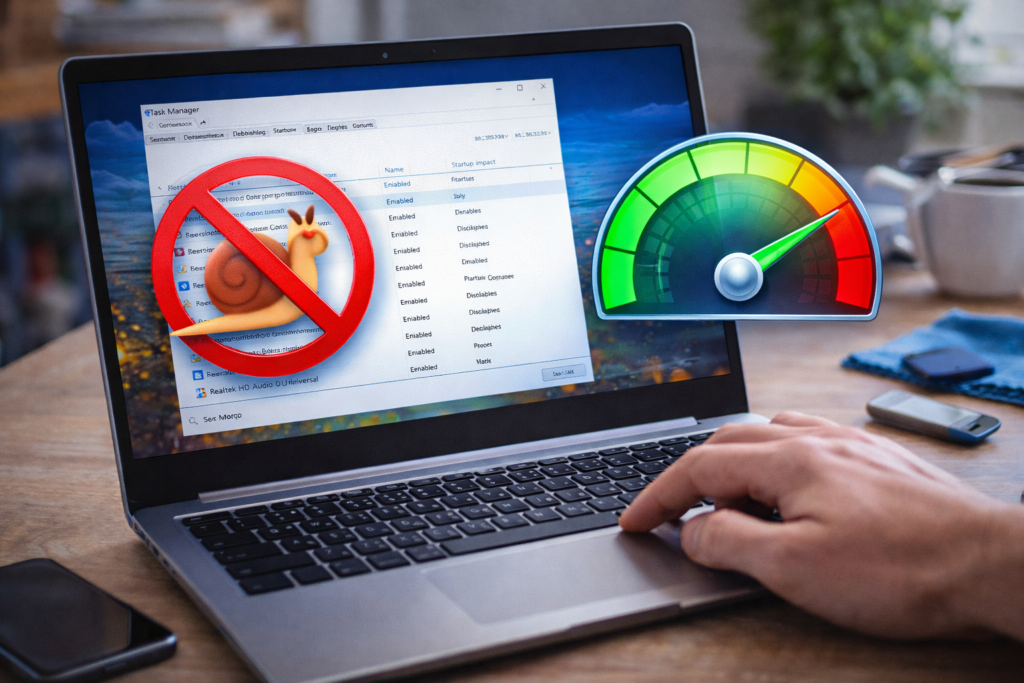
1. Disable Unnecessary Startup Programs
Many programs automatically start when your laptop boots up. These programs use system resources and slow down the startup process.
How to Fix It
On Windows:
- Press Ctrl + Shift + Esc to open Task Manager
- Go to the Startup tab
- Disable programs you do not need at startup
Reducing startup programs can significantly improve boot time.
2. Free Up Storage Space
Low disk space can slow down your laptop because the system needs free space to operate efficiently.
Ways to Free Storage
- Delete unused files
- Remove duplicate photos or videos
- Uninstall programs you no longer use
- Empty the recycle bin
- Move large files to cloud storage
Keeping at least 20–30% free storage helps maintain smooth performance.
3. Uninstall Unnecessary Programs
Over time, laptops accumulate many apps that are rarely used.
These programs consume:
- Storage space
- Background memory
- Processing power
What to Do
Go to your system settings and remove programs that you do not use regularly.
This can free up valuable system resources.
4. Clean Temporary Files
Temporary files build up as you browse the internet and use applications. These files are not needed permanently and can slow down your system.
How to Remove Them
On Windows:
- Search for Disk Cleanup
- Select your system drive
- Remove temporary files and system cache
Cleaning these files can quickly improve system responsiveness.
5. Reduce Background Apps
Many applications continue running in the background even when you are not using them.
These apps consume:
- RAM
- CPU resources
- Battery power
Tip
Close apps that you are not actively using, especially:
- Browsers with many tabs
- Video editing software
- Large file applications
ALSO READ…
- 6 Google Drive Replacements for Linux
- 5 Clever Uses for Your Old Chromebooks
- How to Make Viral Instagram Reels in the USA
- How to Recover a Hacked Social Media Account
6. Update Your Operating System
Software updates often include performance improvements and security fixes.
Updating your operating system can:
- Fix system bugs
- Improve efficiency
- Optimize resource management
Make sure your laptop is running the latest stable version of your operating system.
7. Scan for Malware or Viruses
Malware can dramatically slow down your laptop.
Signs of malware include:
- Unexpected pop-ups
- Unusual system activity
- Programs launching automatically
What to Do
Use trusted antivirus software to scan and remove threats.
8. Reduce Browser Extensions
Web browsers are one of the biggest causes of slow laptop performance.
Too many browser extensions can consume memory and processing power.
Solution
Remove unnecessary extensions and keep only those you really need.
9. Restart Your Laptop Regularly
Many people rarely restart their laptops, but restarting clears system memory and refreshes processes.
Restarting your laptop:
- Clears temporary memory
- Stops background apps
- Improves performance
Restarting once every few days can make a noticeable difference.
10. Keep Your Laptop Physically Clean
Dust buildup can cause overheating, which slows down performance.
Cleaning Tips
- Use compressed air to clean vents
- Wipe the keyboard and screen regularly
- Ensure proper airflow around the laptop
Keeping your laptop cool helps maintain performance.
Bonus Tip: Use Lightweight Software
Heavy applications require more system resources.
Consider using lightweight alternatives such as:
- Simple text editors instead of large office programs
- Lightweight browsers
- Minimal background utilities
This reduces strain on your system.
How Much Speed Improvement Can You Expect?
By applying these techniques, many users notice:
- Faster startup times
- Smoother multitasking
- Better battery life
- Improved system responsiveness
In many cases, laptops can feel almost like new again without any hardware upgrades.
Final Thoughts
A slow laptop does not always mean it is outdated. Most performance problems come from software clutter and poor system maintenance.
By disabling unnecessary startup programs, freeing storage space, cleaning temporary files, and managing background apps, you can dramatically improve performance without replacing hardware.
These simple steps can extend the life of your laptop and save you from spending money on a new device.
SHARING IS CARING 💓