
For a long time, I loved using my Google Pixel phone. The clean Android experience, excellent camera, and smooth interface made it one of my favorite smartphones. But after several months of regular use, something started to feel different.
Apps took slightly longer to open. Animations felt slower than before. Even scrolling through social media didn’t feel as smooth as it used to.
At first, I assumed the phone was simply getting older or that software updates had made it slower. But after exploring a few settings and making small adjustments, I realized that the problem wasn’t the phone—it was the way it was configured.
Once I changed a few hidden settings, my Pixel suddenly felt faster, smoother, and more responsive again.
If your Google Pixel feels slower than it should, you might be able to fix it with a few simple tweaks. In this guide, I’ll share the settings that helped speed up my Pixel and improve everyday performance.
Why Smartphones Sometimes Feel Slower Over Time
Before diving into the settings, it’s helpful to understand why phones sometimes feel slower after months of use.
Even powerful smartphones can experience slowdowns due to:
- Too many background apps running
- Large amounts of cached data
- Animations slowing the interface
- Apps automatically syncing in the background
- Storage space becoming too full
The good news is that most of these issues can be fixed without installing any special software.
Let’s explore the settings that made the biggest difference.
1. Reduce Animation Speed in Developer Options
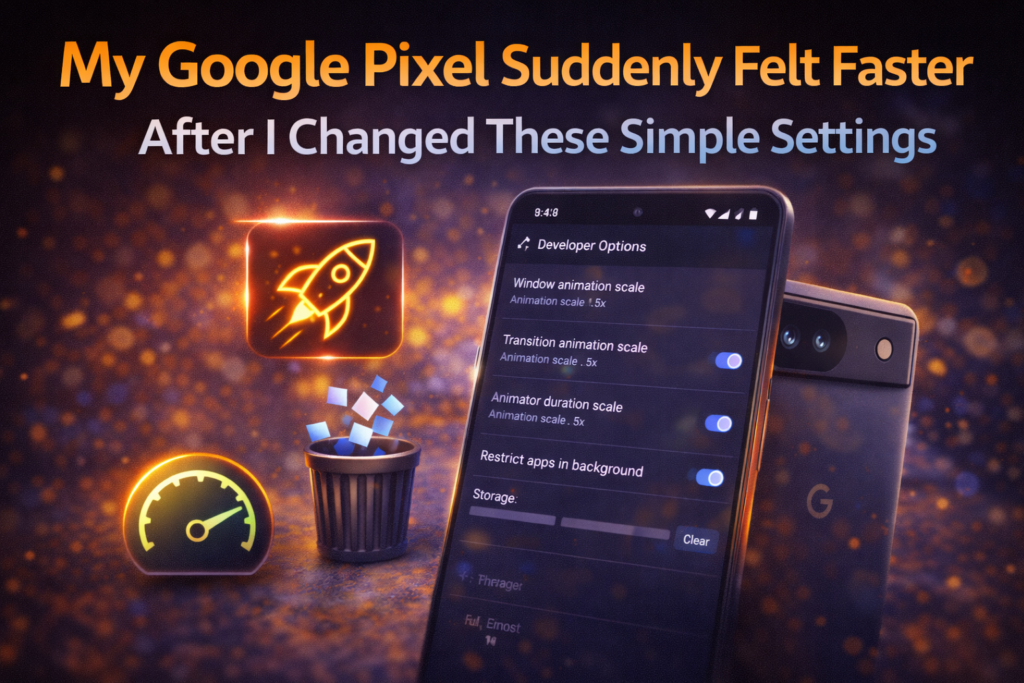
One of the first changes that improved my Pixel’s speed was reducing the animation scale.
Android uses animations when you open apps, switch screens, or close windows. These animations make the interface feel smooth, but they also add small delays.
By reducing animation speed, the phone feels much faster.
How to Adjust Animation Speed
- Open Settings
- Go to About Phone
- Tap Build Number multiple times to unlock Developer Options
- Open Developer Options
- Reduce the following settings:
- Window animation scale
- Transition animation scale
- Animator duration scale
Setting these values to 0.5x instead of the default 1x can make the phone feel noticeably quicker.
Real-Life Impact
After making this change, apps seemed to open almost instantly.
2. Clear Cached App Data
Over time, apps store temporary files called cache data.
While this data helps apps load faster initially, it can accumulate and sometimes slow down the device.
Clearing cache doesn’t delete personal files—it simply removes temporary data.
How to Clear Cache
- Open Settings
- Tap Storage
- Select Apps
- Choose an app and tap Clear Cache
You don’t need to do this for every app, but clearing cache for large apps like browsers or social media apps can help.
Real-Life Example
After clearing cached data from a few apps, scrolling through them felt smoother.
3. Disable Unnecessary Background Apps
Many apps continue running in the background even when you’re not actively using them.
These background processes can consume memory and processing power.
Limiting unnecessary background activity can improve performance.
How to Manage Background Apps
- Open Settings
- Go to Apps
- Select Battery Usage
- Restrict apps that don’t need constant background activity
Real-Life Example
I discovered that several rarely used apps were constantly syncing data.
After restricting them, the phone felt noticeably more responsive.
4. Free Up Storage Space
Smartphones perform best when they have enough free storage.
When storage becomes too full, the system has less room to operate efficiently.
Tips for Freeing Storage
- Delete unused apps
- Remove duplicate photos
- Clear downloaded files
- Move videos to cloud storage
Keeping at least 15–20% of storage free can help maintain smooth performance.
Real-Life Impact
Once I cleared several gigabytes of old files, my Pixel felt more responsive again.
5. Turn Off Unused Features
Modern smartphones include many features designed to improve convenience, but some of them run continuously in the background.
Disabling features you rarely use can free up system resources.
Examples include:
- Always-on display
- Continuous location tracking
- Automatic app updates in the background
Real-Life Example
Turning off features I rarely used slightly reduced background activity and improved battery life as well.
6. Restart Your Phone Regularly
This might sound simple, but restarting your phone occasionally can make a surprising difference.
Restarting clears temporary processes and refreshes system memory.
Many people rarely restart their phones, which allows background tasks to accumulate over time.
Tip
Restarting once every few days can help keep the system running smoothly.
7. Update Apps and Software
Software updates often include performance improvements.
Keeping both your apps and Android system updated ensures your phone benefits from the latest optimizations.
What Updates Can Improve
- App efficiency
- Security protection
- System stability
- Performance improvements
Updating regularly helps prevent slowdowns caused by outdated software.
The Surprising Result After Changing These Settings
After making these adjustments, my Pixel felt almost like a brand-new phone again.
Opening apps became faster, scrolling felt smoother, and the overall experience improved significantly.
The best part is that none of these changes required installing extra software or resetting the phone.
Sometimes a few small settings adjustments can make a big difference.
Tips for Keeping Your Google Pixel Fast
To maintain smooth performance over time, consider these habits:
Keep Storage Organized
Regularly remove unused files and apps.
Monitor Background Activity
Restrict apps that don’t need constant syncing.
Restart Occasionally
Refreshing the system can help maintain performance.
Update Regularly
New updates often include performance optimizations.
Final Thoughts
Google Pixel phones are known for their smooth performance and clean Android experience. However, like any smartphone, they can sometimes feel slower after extended use.
The good news is that small adjustments—such as reducing animation speed, managing background apps, and freeing storage—can restore much of the original performance.
Instead of assuming your phone is aging or outdated, it’s worth exploring a few settings first. With just a few minutes of adjustments, you may find that your Pixel becomes faster, smoother, and more enjoyable to use again.
Frequently Asked Questions
Why does my Google Pixel feel slow?
Phones may feel slow due to background apps, full storage, cached data, or animations that slow the interface.
Does reducing animation speed damage the phone?
No. Changing animation speed only affects how quickly animations appear. It does not harm the device.
Is clearing cache safe?
Yes. Clearing cached data removes temporary files and does not delete personal data.
How often should I restart my Pixel phone?
Restarting once every few days or once a week can help maintain smooth performance.
Can software updates improve phone speed?
Yes. Updates often include performance improvements and bug fixes that enhance device efficiency.
SHARING IS CARING 💖