
Accidentally deleting important WhatsApp messages can be frustrating, especially when those chats contain personal memories, business details, or important information. Many users in the United States search for ways to recover deleted WhatsApp messages after clearing chats, resetting phones, or switching devices.
The good news is that in many cases, WhatsApp messages can be recovered, but it depends on whether you have backups enabled. This guide explains how WhatsApp message recovery works, step-by-step methods to restore deleted chats, and how to prevent message loss in the future.
Can You Really Recover Deleted WhatsApp Messages?
Yes, but only if a backup exists. WhatsApp does not store your messages on its servers once they are delivered. Instead, messages are saved on your device and in cloud backups if enabled.
If you never turned on backups, recovery may not be possible.
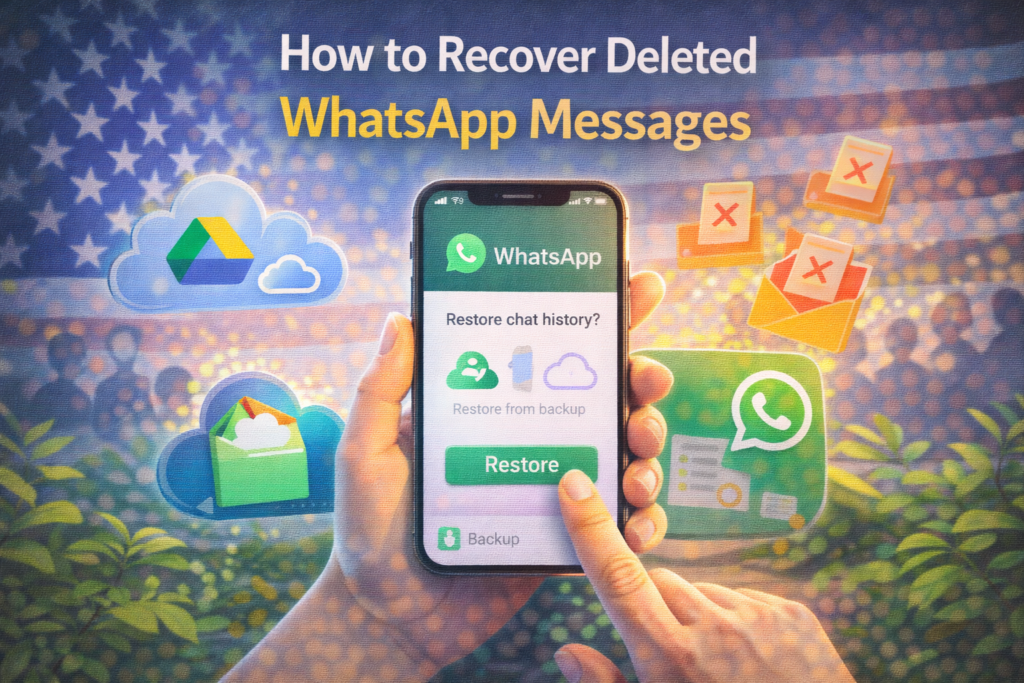
How WhatsApp Backup Works
WhatsApp allows users to back up chats automatically.
On iPhone (USA Users)
Backups are stored in iCloud.
On Android
Backups are stored in Google Drive.
These backups can restore messages that were deleted after the last backup.
Method 1: Recover Deleted WhatsApp Messages Using Cloud Backup
This is the most reliable method.
Step 1: Check If a Backup Exists
iPhone Users:
- Open WhatsApp
- Go to Settings → Chats → Chat Backup
- Check the date of the last backup
Android Users:
- Open WhatsApp
- Go to Settings → Chats → Chat Backup
- See the last Google Drive backup date
If the backup was created before messages were deleted, you can restore them.
Step 2: Uninstall WhatsApp
Remove WhatsApp from your phone.
Step 3: Reinstall WhatsApp
Download WhatsApp again from:
- Apple App Store
- Google Play Store
Step 4: Verify Your Phone Number
Enter the same number used before.
Step 5: Restore from Backup
WhatsApp will detect the backup and ask:
“Restore chat history?”
Tap Restore and wait for the process to complete.
Your deleted messages should reappear.
Method 2: Recover Messages from Local Backup (Android Only)
Android devices sometimes create local backups stored on the phone.
Step 1: Open File Manager
Go to:
Internal Storage → WhatsApp → Databases
Step 2: Find Backup Files
Look for files named:msgstore-YYYY-MM-DD.1.db.crypt14
These are older backups.
Step 3: Rename the File
Rename the file to:msgstore.db.crypt14
Step 4: Reinstall WhatsApp
Uninstall and reinstall WhatsApp, then verify your number.
When prompted, restore from local backup.
Method 3: Ask the Other Person
If you don’t have a backup, the easiest solution may be to ask the other person in the chat to resend messages, photos, or documents.
When Recovery Is Not Possible
You may not be able to recover messages if:
- No backup was ever created
- Backup was overwritten after deletion
- Phone storage was wiped
WhatsApp does not keep personal message copies once deleted.
How Long Does Message Recovery Take?
For most USA users:
- Small backups: 5–10 minutes
- Large backups: up to 1 hour
The time depends on internet speed and backup size.
What NOT to Do
❌ Do not use unofficial WhatsApp recovery apps
❌ Do not trust websites promising message recovery without backup
❌ Do not root or jailbreak your phone just for recovery
These can harm your device or compromise privacy.
How to Prevent WhatsApp Message Loss
✔ Turn on automatic backups
✔ Set daily backup schedule
✔ Connect to Wi-Fi for backups
✔ Include videos if important
✔ Keep iCloud or Google Drive storage available
Prevention is always better than recovery.
Frequently Asked Questions (FAQs)
Can I recover messages deleted a long time ago?
Only if a backup from that time still exists.
Does WhatsApp store deleted messages?
No, WhatsApp does not store deleted chats on its servers.
Can I recover messages without uninstalling WhatsApp?
No, restoring from backup requires reinstalling.
Do backups include media files?
Yes, if media backup is enabled.
Final Thoughts
Recovering deleted WhatsApp messages is possible for many users in the USA if backups were enabled. By restoring from iCloud or Google Drive, most chats can be brought back safely. If no backup exists, recovery options are limited.
To avoid future message loss, make sure automatic backups are turned on and stored securely.
For more WhatsApp fixes and social media help guides, visit SocialMediaFixes.com.
SHARING IS CARING 💖